Pokémon GO Explorer Gadget update adds “help mode” in-app. When news broke on Nov. 2, 2026, that the Pokémon GO Explorer Gadget update had been announced, the in-app help mode was available in the Nov. 2, 2026 update but not yet for in-store use. The new update adds “pink” Poké Ball indicators that let you take control of an automated Pokémon catch or PokéStop spin for a limited amount of time. This feature will roll out gradually and won’t be available to everyone at once. Here’s what you need to know about how the in-app help mode will work, what it skips for you, what it does with Pokémon GO Plus +, and how to tell if you have it.
Table of Contents
What changed in the November 2 update
The system remains the built-in, hardware-less auto catcher for Trainers level 20 and above, and it still uses only standard Poké Balls. The key difference is in when it operates. This table summarizes the change.
| When it works | App closed or in the background | Background and while you’re actively playing |
| What you see | A summary when you reopen the game | Live pink Poké Ball markers on the map, plus the summary |
| Manual control | None while it’s running | Tap a marked target to take over |
| Accessory rule | Can’t run with an active accessory | Unchanged |
In-game, you no longer need to decide between playing and banking automatic progress. Stay out and about with the app open, and the Gadget keeps working instead of turning off every time you glance at your device. Full list of features: view Pokémon GO’s Explorer Gadget update.
How the pink Poké Ball works while you play
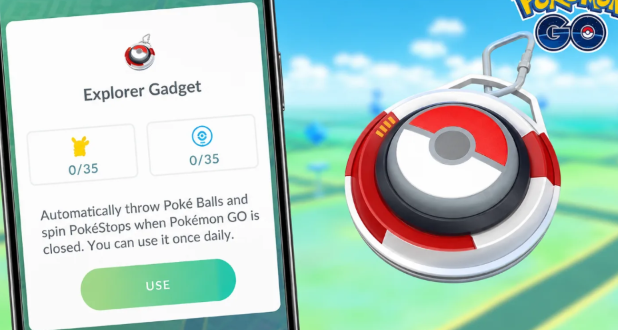
When the Gadget is on and the game is open, a pink Poké Ball icon appears above any Pokémon or PokéStop that the Gadget is trying to catch or spin. This icon serves two purposes: it indicates what the Gadget is already handling, so you avoid wasting a throw, and it highlights what you can take control of.
Activation is the same as before. Tap the Gadget icon at the top right of your map, or tap Key Items in your Item Bag to use it.
Watch the takeover window. When the pink icon pops up, you have a short window to get out of the Gadget. Pokémon GO hasn’t revealed the length of this window, so play this like a second, not a minute.
What taking over looks like in practice.
For example, you want to walk through the park with the Gadget on and the map open.
STEP 1: Leave your device turned on and monitor the map. Everything your device has learned will show up on screen in a pink Poké Ball.
Step 2: Consider if this particular Pokémon matters to you. A Pidgey is suitable for the Gadget. If it’s a Pokémon you’ve been wanting to encounter, or one you wish to use a Curveball on for the bonus, it may not be.
Step 3: To try to catch it yourself, tap the Pokémon before the countdown window ends. Pokémon GO refers to it simply as trying to catch it “for yourselves,” but it should work as a standard encounter.
Step 4: To claim a PokéStop, tap the stop to select it, then spin to claim.
Step 5: Tap the Gadget icon on the map, or open it from Key Items to view what the Gadget accomplished. The summary shows what Pokémon were caught, how many, and how many PokéStops were spun.
One trade-off. The Gadget targets on its own clock, so you won’t be able to beat it. If the pink icon is already out, you’re playing catch-up – nothing wrong with that for run-of-the-mill spawns, but if you’ve got a personal favorite, time might be of the essence.
What the Gadget still won’t catch
Skip rules didn’t change. The Gadget will skip, for instance, Pokémon you don’t have registered in your Pokédex yet, or even Mighty Pokémon.
However, if a species you haven’t previously caught is still new to you, you do need to make a manual first catch. But forms of a species that you’ve already caught may also be considered new, even if you haven’t caught them! The pink icon won’t necessarily mean that everything you’re seeing is being caught, though. You probably won’t get this icon on skipped Pokémon, but Pokémon GO doesn’t say for sure.
Other constraints are independent of the map:
- Daily caps. You can only catch a certain number of Pokémon and spin a certain number of PokéStops each day for each Trainer level, and the Gadget also stops for the day when it hits its limit. The exact figures have not been officially released.
- Full storage. It stops catching Pokémon when your Pokémon Storage is full and stops when your Item Bag is full.
- Only regular Poké Balls. It will never use a Great Ball or an Ultra Ball, which means it keeps your better stock but uses catch odds equal to a plain Poké Ball.
Using it with Pokémon GO Plus +
You can own both and use both, just not at the same time. Being paired and being active are different things. Keeping a Pokémon GO Plus + paired doesn’t block the Gadget, so you don’t need to unpair it. What matters is which one is currently running. The map shows whether the Gadget or the accessory is active, and if an accessory is paired, you start the Gadget from Key Items in your Item Bag.
The problem is, you have to switch. Switching to the accessory while the Gadget is active shuts the Gadget off and makes it unusable for the rest of the day.
Treat them as alternatives, not as a pair. A safe technique is to run the Gadget first and add the accessory later, or to keep the Gadget as a backup if the accessory’s battery runs out. Going the other way means you lose the Gadget for the rest of the day. For more on the rules, see the Explorer Gadget usage restrictions in the Pokémon GO Help Center.
Is the Pokémon GO Explorer Gadget update available to everyone?
Nope. The Gadget still requires the Trainer to be at least level 20, and it was also introduced with a staggered rollout starting last August 2026 – Pokémon GO says when the Gadget has an announced global launch. The update announcement doesn’t specify a rollout schedule, so you shouldn’t assume all accounts now include the active-gameplay behavior.
To verify if you have this, go through the following list:
- Identify the icon. It appears at the top right of the map and in the Key Items section of your Item Bag.
- Your skill level. The Gadget will not display below level 20.
- See if you have an active accessory. If a Pokémon GO Plus+ or another similar device is connected, start the Gadget from Key Items and confirm the accessory is currently active.
- Get the latest version of the game. Download the latest version from your app store.
- Check it in play. Open the app and turn on the Gadget, then look for pink Poké Ball icons. If the Gadget is working in the background but you don’t see the icons, your account might not have the active-gameplay update.
Other changes in the same update
The update also made some other minor adjustments, according to the Pokémon GO Hub patch notes:
- Updated catch summary, with better graphics for catch and catch bonus.
- A separate Appraise button on Pokémon summary pages, located above Additional Options
- PokéStop color saturation modified to make spun and unspun stops more distinguishable.
- New rings available to Pokémon attracted by Lures and Routes, and additional effects for Mystery Box and Coin Bag spawns.
- Power Spot walks and Max Battle positions no longer trigger additional wilds around the spot.
The PokéStop color change offers tangible accessibility benefits, and the Appraise button still means fewer taps for those frequently checking IVs. These all come from Hub’s explanation, so double-check whether any of them matter to you when updating.
Is the update worth using?
For regular players, yes, with a few caveats.
It performs great when you’re just passing by – catching and spinning when your phone is free, and staying in the game to focus on the Pokémon you want to catch. That’s a huge upgrade from the launch version of the Gadget, where you couldn’t keep playing while you were using it.
It’s less useful if you want to catch everything by hand or your goal is specific to a certain Pokémon. It skips unregistered species and Mighty Pokémon, uses only Poké Balls, stops at the daily limit, and can reach a spawn before you even realize you wanted it. Catch hunters will do most of the work themselves.
FAQs
Does the Explorer Gadget work if Pokémon GO is running?
Yes. After the 2 Nov 2026 update, it works in combat and in the background (though availability will vary by account).
What does the pink Poké Ball icon mean?
Displays a Pokémon or PokéStop that the Gadget is in the process of catching or spinning.
Can I catch a Pokémon the Gadget was after?
Yes. Tap the icon to dominate, but only briefly after it appears. And the duration isn’t available.
Will it really get Pokémon that I haven’t put in?
No. It excludes species you have not yet registered in your Pokédex and Mighty Pokémon. Different forms of a species you have already registered may still count.
Is this compatible with Pokémon GO Plus +?
Not simultaneously. There’s no need to remove the connection to the accessory, but if you put on the Gadget while the accessory is enabled, it will turn off until the following day.
Read:
Best Pokemon TCG Pocket Mega Blaziken ex Deck (2026 Guide)

I’m a content writer passionate about gaming and strategy. I create engaging and informative content based on the latest gaming trends and industry updates. I enjoy exploring new tools, analyzing games, and making complex topics easy to understand for readers.