More controllers are compatible with the Switch 2 than you might think, but they follow some bizarre compatibility rules. This guide explains how the Joy-Con 2, the Switch 2 Pro Controller, and your old Switch controllers work, covering pairing, charging, battery life, and multiplayer to help you decide what to buy and what to avoid.
Quick Answer: The Joy-Con 2s that ship with the console are designed for handheld, tabletop, and TV play. The Pro Controller is better for marathon TV gaming. Your original Joy-Cons and Pro Controller still work wirelessly so that you can use them as additional controllers.
Table of Contents
Nintendo Switch 2 Controller Comparison
| Joy-Con 2 | Yes | Yes | Handheld play, simple multiplayer, mouse controls |
| Switch 2 Pro Controller | Yes | No (wireless) | Long TV sessions |
| Original Joy-Con | Yes, wirelessly | No | Extra players |
| Original Pro Controller | Yes, wirelessly | No | Owners who already have one |
Joy-Con 2 Overview
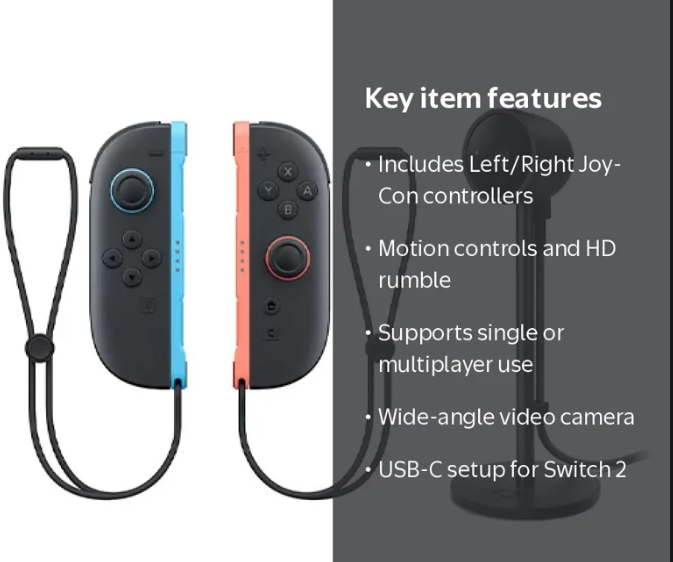
Joy-Con 2 goes on the left and right of the Switch 2. The following are the three different ways Nintendo lists them being used on Switch 2, depending on the game you are playing:
- They connect to the console in handheld mode.
- Connect wirelessly in pairs held vertically; the left and right are one controller.
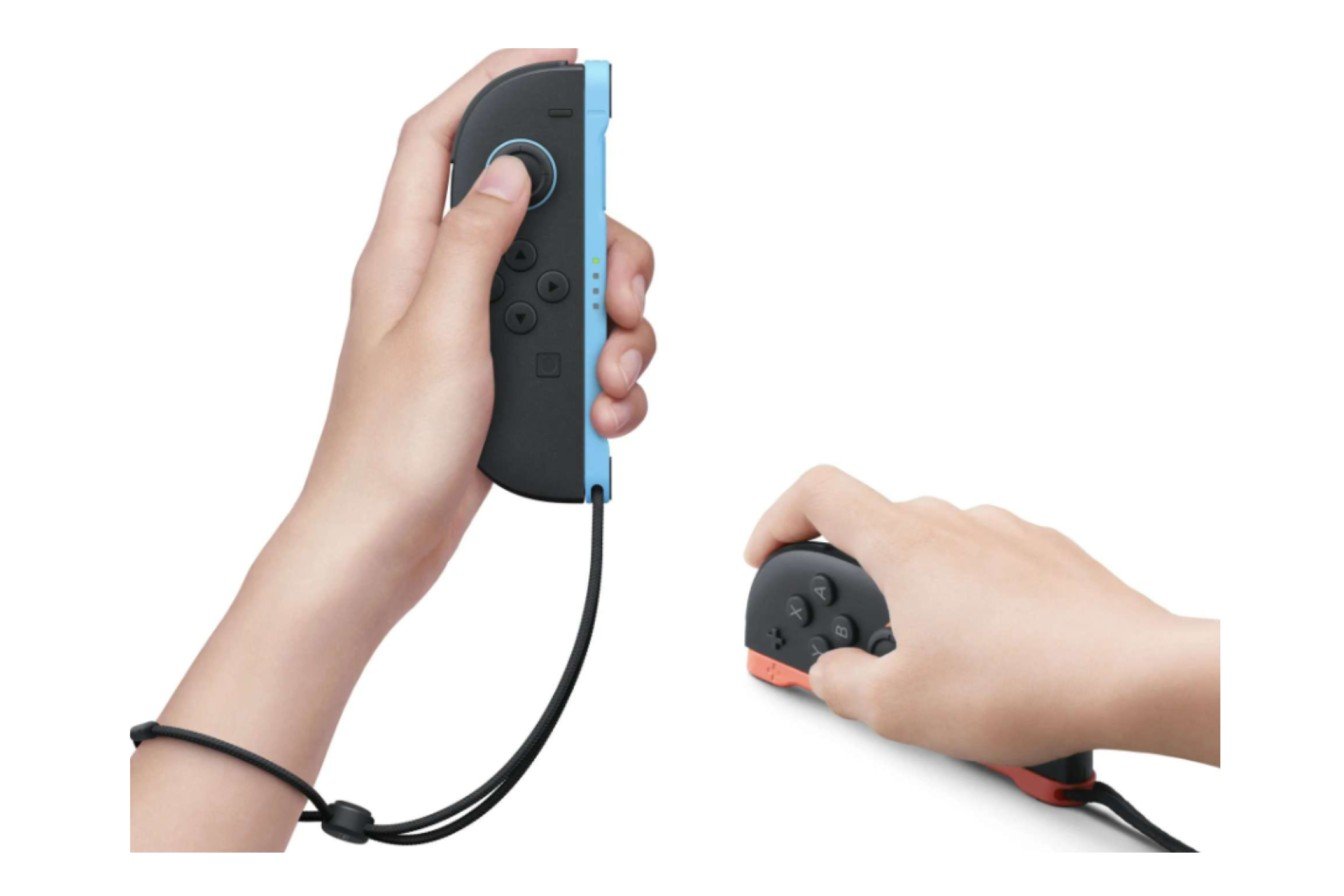
- When paired wirelessly and held horizontally, each Joy-Con 2 functions as an individual controller.
One hard rule applies. Nintendo says Joy-Con 2 only works with the Switch 2, not the original Switch.
What’s New With Joy-Con 2?
A huge difference is the attachment. Joy-Con 2 hooks onto the console and stays in place with powerful magnets, and you can remove the attachment by pressing a button on the back. Nintendo claims the magnets are safe for the screen.
| Works with Switch 2 | Yes, wirelessly only | Yes |
| Attaches to Switch 2 | No | Yes (magnetic) |
| Mouse controls | No | Yes |
| Rumble | HD Rumble | HD Rumble 2 |
| Accessories | Original straps, grips and charging accessories | Own straps and charging grip |
That last row is an issue for upgraders. While Nintendo says everything on the list is compatible, the original Joy-Con grip, strap, charging grip, wheel, AA battery pack (pair), and charging stand don’t work with the new Joy-Con 2.
Joy-Con 2 Mouse Controls
Each Joy-Con 2 has a side sensor so that it can function as a mouse. Nintendo states you can use either one, or both together, on a desk, table, or other flat surface. The left and right units provide identical mouse functionality, except for button configuration.
You can also use mouse functionality outside the game. Nintendo has stated that mouse functionality is supported in the HOME Menu and in applications such as Nintendo eShop and Nintendo Switch Online.
Some helpful notes:
- Support is per game. Mouse controls work only in supported games, so check your game’s description before assuming.
- The strap is optional, but it might help. Nintendo says you can use mouse controls without the strap, but some games require it. It might be more comfortable to wear with the strap.
- Surface matters. Nintendo says responsiveness depends on the surface. When in doubt, move to a different desk or try a different mat before you rule out the controller.
Can You Use Joy-Con 2 Separately?
Yes. You can use the Joy-Con 2 horizontally in supported games as one controller per player, so a single pair supports 2 players. Alternatively, you can pair the left and right Joy-Con 2 separately so each acts as one controller; the system decides, or you choose, when you pair (see the pairing section below).
Nintendo Switch 2 Pro Controller
Specifications
Based on Nintendo’s product specifications and retailer listings, the Pro Controller has:
- HD Rumble 2 and motion controls
- Built-in support for amiibo
- A C Button to open the GameChat menu
- Two back buttons, GL and GR, can be mapped to any button.
- 3.5mm headphone jack
- 1,070 mAh battery lasts for up to approximately 40 hours, around 3.5 hours to fully charge (retailer listing)
- A USB-C charging cable in the pack
Features: For use with the Switch 2 only.
Is it worth buying?
Critics are divided, and the divide is interesting. One review thought it was a more-than-worthy successor, praising the mappable back buttons and the headphone jack. Still, it concluded it’s not worth it if you already have the original and pointed out the lack of Hall effect sticks. Another review felt it wasn’t worth the price, claiming the original Pro Controller offered better value for money.
The Pro Controller is a comfort-and-utility item, not a necessity, in the real world. If you play your Switch a lot in handheld mode, you’ll likely use the device only occasionally.
Joy-Con 2 vs Pro Controller
| Handheld mode | Attach to console | Not applicable (wireless only) |
| TV mode | Wireless, in a grip or held separately | Wireless |
| Multiplayer out of the box | Two players from one pair | One player per controller |
| Mouse controls | Yes | No |
| Back buttons | Not on the Joy-Con 2 itself | GL/GR, mappable |
| Headphone jack | No | Yes |
| Battery (rated) | Up to about 20 hours | Up to about 40 hours (retailer listing) |
Whether you choose the Joy-Con 2 for versatility or the Pro Controller for comfort and more features, either works; certain retailer listings say the official Joy-Con 2 charging grip also features mappable GL/GR buttons. Confirm that on Nintendo’s product page before you rely on it.
Original Switch Controller Compatibility
As shown on Nintendo’s compatibility page, it looks like this:
| Original Switch Pro Controller | Yes, wirelessly. Charges via USB cable on the Switch 2 dock |
| Original Joy-Con | Yes, wirelessly only |
| NES, SNES, N64, SEGA Mega Drive controllers | Yes, wirelessly, with compatible games |
| GameCube Controller Adapter | Yes, in TV mode via a dock USB port |
| Original Switch dock | No |
| Original Joy-Con grip, strap, wheel | No (original Joy-Con only) |
A Switch 2 GameCube controller may also be available through Nintendo. We haven’t verified the full feature list, so check Nintendo’s shop before you buy.
Can You Use Old Joy-Cons on Switch 2?
Yes, but only wirelessly. Nintendo has announced that original Joy-Cons can’t physically attach to the Switch 2, but you can still use them wirelessly.
2 Things That Surprise People:
- Charging. The Switch 2 can’t charge original Joy-Cons. You’ll need an original Switch or a third-party licensed accessory like a charging grip or a two-way charging stand.
- Fitness and motion controllers. The Ring-Con and leg strap are incompatible with Joy-Con 2. Nintendo says you can still use these accessories on a Switch 2 if you wirelessly attach the original Joy-Cons used with Ring Fit Adventure and Nintendo Switch Sports.
If you have Ring Fit Adventure, keep those old Joy-Cons.
How to Pair Nintendo Switch 2 Controllers
Below are the three options Nintendo recommends for connecting your Joy-Con 2.
Physical pairing
- Step 1: Turn on the console.
- Step 2: Attach the Joy-Con 2.
Wirelessbutton(pairing)
- Step 1: On the HOME Menu, select Controllers.
- Step 2: Choose Change Grip/Order.
- Step 3: Press and hold the controller’s SYNC button for at least one second. The player LED will stay on after synchronization.
- Step 4: Decide who is holding it. (L+R) (or ZL+ZR) is for both controllers, or (SL+SR) on each Joy-Con 2 for horizontal playing mode.
Pairing via USB connection
- Step 1: Turn on the PlayStation console.
- Step 2: Connect the Joy-Con 2 to the Joy-Con 2 charging grip (sold separately).
- Step 3. Use the supplied USB-C cable to connect the grip to the Switch 2 dock.
For example, if a controller isn’t registering when connected or won’t connect, check Nintendo’s pages on updating the system, turning it off and syncing, and so on.
Controller Battery Life
| Joy-Con 2 | Up to about 20 hours of continuous use | About 3.5 hours |
| Switch 2 Pro Controller | Up to about 40 hours (retailer listing) | About 3.5 hours |
Nintendo says Joy-Con 2 battery life varies depending on the software and features you use.
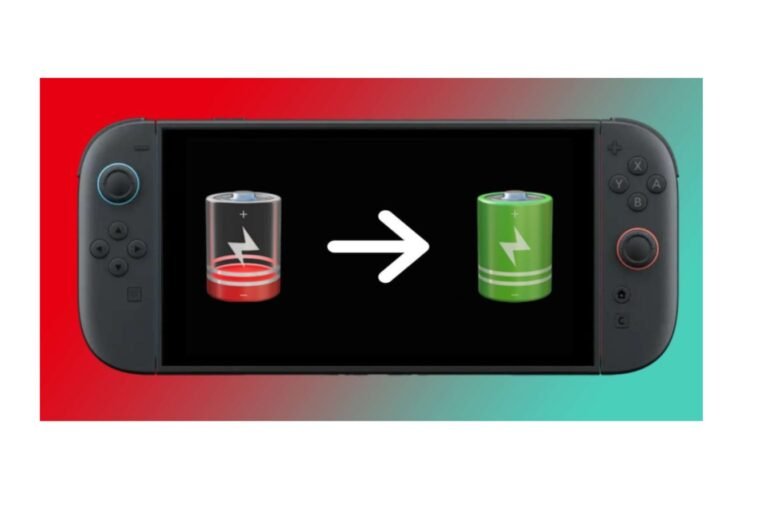
Charging Joy-Con 2
According to Nintendo, there are 2 charge options:
- On the system. Connect the Joy-Con 2. Make sure your console is connected to the AC adapter and either on or in sleep mode.
- On the charging grip. Insert Joy-Con 2 into the grip, then connect the grip to the Switch 2 dock using its USB cable, or plug the grip directly into the Switch 2 AC adapter.
Nintendo says the charging grip isn’t included in any existing Switch 2 bundles and must be purchased separately.
Best Controllers for Multiplayer
The console can handle up to eight wireless controllers. Nintendo says the real maximum depends on the controller types and how many features you use. There’s also a per-game maximum, which is often lower.
A reasonable approach to assemble:
- Two players: One pair of Joy-Cons, each held horizontally.
- Three or four players: Use your own Joy-Cons or Pro Controller. Wireless play doesn’t require anything new, so see if you can save money there.
- Five or more: First, check the game’s player limit and use that as your guide. Then, count up how many controllers you have.
A horizontal Joy-Con can feel cramped for adults or those with larger hands. For typical family play, using a grip or Pro Controller is more comfortable.
Which Nintendo Switch 2 Controller Should You Buy?
Get Joy-Con 2 if:
- You primarily play in handheld.
- You want straightforward 2-player multiplayer.
- You would like mouse controls.
You will need the Switch 2 Pro Controller if:
- You play mostly on TV.
- You have long gaming sessions.
- First of all, you want a normal controller with back buttons + headphone jack.
You should keep your original Pro Controller if:
- You already have one.
- You don’t require the improvements.
Buy another pair of Joy-Con 2 if:
- You often game with 3 or 4 people, and you don’t have any other controllers.
Consider classic controllers if:
- You predominantly play retro games. Nintendo says several games support these controllers.
Prices vary by area and fluctuate, so compare prices on Nintendo’s site or from a trusted seller before buying. There are also third-party controllers. Models differ, so read up on the reviews and compatibility notes first.
FAQs
Will Older Joy-Cons Work on Nintendo Switch 2?
Yup, via wireless. Sorry, you can’t actually hang them on the console.
Is the original Pro Controller compatible with Switch 2?
Does it recharge wirelessly? Yes. It can recharge using a USB cable on the Switch 2 dock.
Can you operate Joy-Con 2 independently?
YES. They can function horizontally as a standalone controller in games that support it.
Can you play Joy-Con 2 on the first Switch?
Are the game cards backward compatible? No. Nintendo states they are for Switch 2 only.
Is the mouse available on the Joy-Con 2?
Yes. Both units will function as a mouse in those same games.
Can I charge old Joy-Cons with the Switch 2?
Not directly. They will need an original Switch console or a licensed accessory.
Are the old Joy-Con accessories compatible with the new Joy-Con 2?
Are there any accessories I cannot use? No. The original strap, grip, wheel, and charging accessories are not compatible.
How many controllers can connect to Switch 2?
You can use up to eight wireless controllers, depending on the controller model and features.
Can I play while my Joy-Con 2 is charging?
While on the console, they will charge as long as the console is turned on or in sleep mode and the AC adapter is plugged in. Nintendo’s pages don’t specify play-while-charging on the charging grip, so check those pages if that is a concern to you.
Is it worth buying the Switch 2 Pro Controller?
It’s a comfort enhancement. It’s more helpful for long TV sessions than if you already have the original.
Conclusion
The case for the other two is obvious, and the Pro Controller is another comfort upgrade. Check what you already have first. You can still connect your regular Pro Controller and Joy-Cons wirelessly, and the Ring-Con still needs the original Joy-Cons. For the full console picture, read Nintendo Switch 2: Complete Guide.

I’m a content writer passionate about games and strategy. I’m dedicated to creating engaging, informative content for today’s audience. I keep a close eye on the latest gaming and industry trends to deliver entertaining, informative articles. Whether it’s exploring new tools or analyzing the sport, I bring a new, accessible voice to each episode. Let us connect and enhance your content with knowledge and insight!