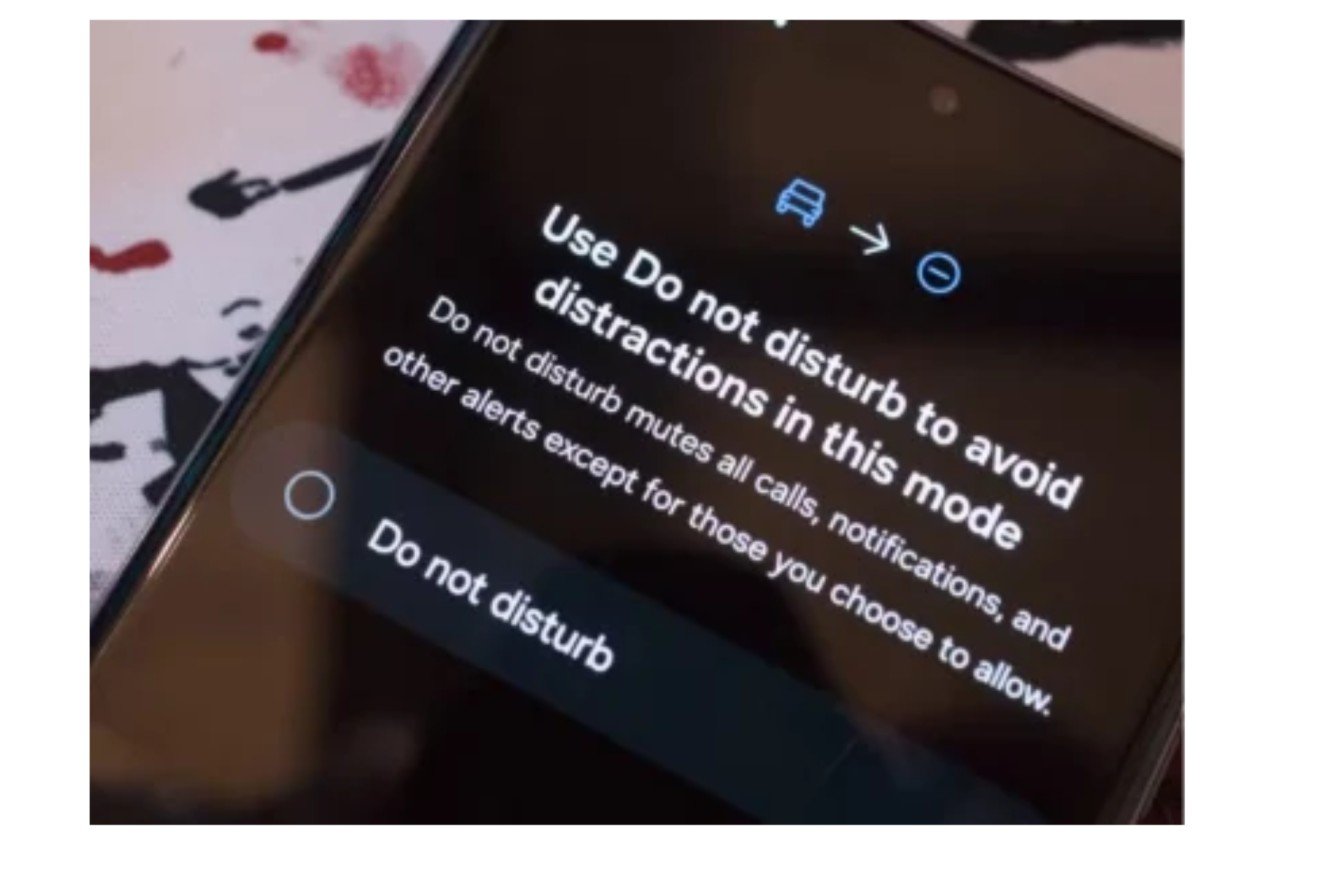
Cut down on distractions with Android’s notifications-while-driving feature, which warns you about calls, messages, and other app notifications. This option can be set through Driving mode on compatible Android phones, but the menu and toggle vary by phone and Android version.
Turning it on with a supported Pixel or Android device: To turn it on, go to Settings → Modes → Driving → Set up Driving, and under automatic activation, choose While driving. Or adjust the notification filters to control which calls, messages, and apps can break through.
If your cell phone keeps enabling Do Not Disturb when you’re a passenger, or never activates Driving mode at all, here’s what to look out for and how to adjust the settings.
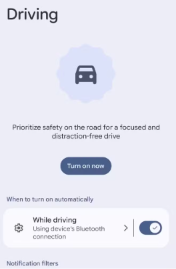
Table of Contents
How to turn on Driving mode, step by step
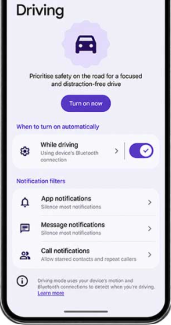
This is the path Google documents, and some of these steps are available if your Android version is 14.
Step 1: Launch Settings and tap on Modes.
Step 2: Select Driving, then choose Set up Driving.
Step 3: Tap When to turn on automatically, then select While driving.
Step 4: Expand your Notification filters and select what can come through (discussed below).
After setup, Driving is available in Quick Settings. Pull down from the top of the screen and tap it to toggle on/off manually. Handy when the automatic detection doesn’t kick in.
No Modes option? You might have an older Android phone or a manufacturer-custom look in Settings. Check out the brands below.
Driving mode vs. regular Do Not Disturb.
They’re connected, but not the same. Driving is just one Mode among many, including Do Not Disturb and Bedtime, that you can access through the Android Mode feature. Each Mode has different notification filters.
You can use Driving mode for driving activation, but you can also activate Do Not Disturb manually or through rules. The list of triggers and controls depends on your Android version and device.
Mute notifications isn’t the same as lock mode. This mode still lets you unlock it and open apps, so it only removes the temptation but doesn’t stop you from picking up the phone.
Choose who and what can reach you.
Sometimes you don’t want your phone to be silent. Maybe you want your partner to call you, or your kid’s school to get in touch. As per Google’s help page, there are three filter areas located under Settings → Modes → [your mode] → Notification filters.
- People: reject or accept calls, messages, and conversations. Enable Allow repeat callers, and a call goes through if the same person calls twice within 15 minutes.
- Apps: decide which apps you’re even bothered by at all.
- Alarms and other interruptions: there’s an option to allow alarms, media, touch sounds, reminders, and calendar events.
Some notices you can’t block. Google says it will still display important notices like system security notices.
One way to start is to allow only starred contacts and repeat callers, and block every app except navigation and music. If you drive for work and need dispatch messages, build the filters around that instead.
Why Does Do Not Disturb turn on when you’re a passenger?
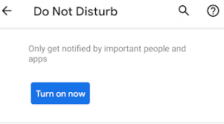
When your phone goes eerily silent on a bus or in the back of a taxi, the activator rule is at play. Detecting whether someone’s a driver isn’t always foolproof. So – take a look and see which activator did the deed:
Step 1: Navigate to Settings → Modes → Driving to view and understand the automatic rules.
Step 2: See if a different mode like Bedtime or your custom schedule was on at the same time.
Step 3: For Samsung and other phones, locate the relevant driving mode or routine and examine its trigger.
Step 4. If your phone can activate a car Bluetooth connection, you might want to use it when motion sensors trigger Driving mode while you’re a passenger. Look into how your device manages that setting.
How to stop it turning on automatically
Delete the auto rule and keep the mode for manual use, or leave the rule enabled and only change what it filters.
Step 1. Navigate to Settings → Modes → Driving.
Step 2: In the When to turn on automatically section, disable While driving.
Step 3: Retain the mode. You can always open it directly from Quick Settings.
Step 4: Pull over to test the result. Do not make these adjustments while driving.
Turning off the automatic rule is not the same as deleting the mode or editing its filters. If the real problem is that you’re missing calls you want to receive, update the People filter and leave the automation in place.
Samsung Galaxy, Motorola, OnePlus and other phones
According to Google, these steps differ by phone, and different phones call the features different names and place them in different menu locations. Use this table as a cheat sheet for where to look, not where to go.
| Google Pixel | Settings → Modes → Driving (the path in Google’s documentation) |
| Samsung Galaxy | Look for a driving mode or routine in the Modes and Routines area; labels depend on your One UI version |
| Motorola | Check the Modes section of Settings, and see Motorola’s support pages for your model |
| OnePlus and others | Search Settings for “driving” or “Do Not Disturb”; the name and location may change between updates |
The Settings search box may be the fastest way to get there on most phones. If you post Google-trimmed Samsung, Motorola, or OnePlus paths later, verify their accuracy with the maker’s documentation for the exact software version.
Google’s older directions for versions of Android 8.1 and beneath put Do Not Disturb below Sound → Do Not Disturb preferences, with choices for complete silence, alarms solely, or precedence solely. Those variations do not use the Modes structure.
If Driving mode is missing or won’t start
Complete these in order.
- Search Settings for “Driving”, “Modes,” and “Do Not Disturb”. It might have a different name.
- Verify your Android version. Certain actions may require Android 14 or higher.
- Make sure the Automatic mode is enabled. Press the mode button and make sure While driving is selected.
- Check permission prompts. If your phone asks for permission for a driving feature, review the prompt and, if applicable, follow the device manufacturer’s instructions. Remember that you may not need to allow app usage or sensor permission on every device.
- Ensure you have Bluetooth enabled if your phone has a trigger to connect to the car. If the vehicle is not paired with the phone, the mode will not start.
- Restart and update. A pending system update can fix a mode that operates strangely.
- Go over your filters again. If you are still getting notified, it may be because the allowed apps or contacts are more extensive than you thought.
Does it work with Android Auto?
Sort of. Your vehicle’s display and your phone’s Driving mode are independent layers, and you can’t entirely silence your dashboard by turning off either one.
According to a 2026 survey from Cambridge Mobile Telematics, 80% of drivers who used Apple CarPlay or Android Auto reported that, even with Do Not Disturb While Driving on, notifications were still visible on their vehicles. That suggests the phone-level controls may not cover all notifications displayed on a vehicle’s screen. Also review Android Auto’s notification settings, and test with an actual message while parked.
It’s also useful to understand what Driving mode won’t do. Navigation and music can remain active, based on your filters. Google’s support page notes there isn’t a system-wide “I’m driving” auto-reply, so anytime you reply while on the road, it’ll likely go through Android Auto or in your messaging app.
A short checklist before your next drive
Go over this once, in the car:
- Appears in Quick Settings.
- Notification stays silent for a test message from a contact you haven’t permitted.
- A starred contact can still ring through – if you’ve set it to.
- It will turn off after the trip. If it remains on, turn it off in Quick Settings and check the rule.
- You see what you get on the screen of the car.
In addition to Trips on the phone, AAA Foundation researchers also found that the probability of a task occurring on a smartphone decreased when Do Not Disturb mode was enabled. Still, they warn that this mode is no silver bullet for distracted driving. See their write-up for the full report.
FAQs
Is there a way to allow calls in Driving mode?
Yes. Head to Notification filters → People and enable starred contacts, selected contacts, or repeat callers. The options vary depending on your phone.
Why does it activate when I’m sitting in the passenger seat?
Automatic detection doesn’t always know who’s driving. Check the trigger setting for your mode, or turn off automatic detection and start the mode manually.
Can Driving mode work without Bluetooth?
It depends on your phone and its activation options. Review the mode settings to see what’s on offer.
Will Google Maps or music stop?
Not necessarily. Your controls determine what can come in, and your media might be allowed through during alarms and other interruptions. Check that setting if you lose sound.
Do all Android phones have a Driving mode?
No. Google says some features require Android 14 or higher, and some OEMs may label and position features differently.
For the official procedures, visit Google’s article on minimizing interruptions with Modes and Do Not Disturb.
Read:
How Can You Prevent Viruses and Malicious Code?

I’m a technology writer passionate about AI and digital marketing. I create engaging and useful content that bridges the gap between complex technology concepts and digital technologies. My writing makes the process easy and engaging. I encourage participation I continue to research innovation and technology. Let’s connect and talk technology!