You guard your devices with layers of defense: current software, real-time antivirus, safe downloads, restricted user accounts, backups. Never rely on just one. Malware enters through everyday experiences, opening a malicious invoice email, tapping a “Update now” button on a phony alert, or downloading a spyware program from a misleading page. This article highlights the behaviors and settings that matter most for cybersecurity at home or at work, how infections occur, what to do if you fall victim, and how guidance varies across devices.
Table of Contents
Virus vs. malicious code: what’s the difference?
A virus is one type of malware. It copies itself by embedding (or “infecting”) itself into other programs or files, and infection occurs when that infected code is executed. “Malware” (short for “malicious software”) is the much more general term; most modern threats aren’t really viruses. Malicious code can spread in different ways, depending on the file type, a software vulnerability, or an action you take (e.g., running an installer, enabling a macro).
| Virus | Infects other files or programs and spreads when the infected code runs | An infected program shared between PCs |
| Worm | Spreads across networks on its own | Exploiting an unpatched network service |
| Trojan | Pretends to be useful software | A “free PDF converter” that installs a backdoor |
| Ransomware | Locks or encrypts files and demands payment | A document that triggers file encryption |
| Spyware | Quietly collects data or keystrokes | A browser extension that reads every page you visit |
| Malicious script | Runs commands through a browser, document or shell | A macro or script launched from a booby-trapped file |
This matters because prevention advice based solely on “viruses” overlooks Trojans and malicious scripts, which usually require you to run something yourself.
12 steps to prevent viruses and malicious code
Start with the first four. They block the main infection pathways.
Step 1: Keep your operating system and apps updated
Attackers often exploit known, unpatched vulnerabilities. Enable automatic updates for your operating system, browser, office applications, email client, and router firmware when possible. If you change only one habit, prioritize this. Restart when prompted, as many updates require a restart to be applied.
Step 2: Run antivirus with real-time scanning
Real-time protection scans files as you open them, not just on a schedule. On Windows, Microsoft Defender covers the basics. A paid subscription can add an extra layer, like a password manager or a VPN, if you need it. Antivirus can stop many threats, but a new one can still get through.
Step 3: Download software only from trusted sources
Download apps only from a vendor site or a first-party store, not a search ad or a message link. 5-second check before you click download:
- Does the domain have the precise name (no added words, inverted letters, or strange endings)?
- Can you tell who the publisher is?
- Any file type that doesn’t make sense? A “PDF viewer” submitted as a .zip should have raised a red flag.
- Are you about to be led astray by a giant flashing download button?
- Is the installer asking for permission for something it shouldn’t require?
Step 4: Check links before you open them
On a computer, hover over a link to reveal the true location; on a phone, press and hold. Watch out for mismatched link text and destination, links that are shortened, and messages that rush you (“your account will be closed today”). If an email says it’s from your bank or from a delivery company, visit the bank or delivery website or app yourself rather than clicking on a link.
Step 5: Treat email attachments as untrusted until verified
A plain email usually isn’t enough to infect you, but it doesn’t hurt to be cautious. Email program vulnerabilities are also sometimes used in these campaigns with little to no interaction, so keep your email program up to date. The biggest daily risk comes from attachments and links, especially invoices, shipping notifications, and unexpected “voice message” files, as well as Office documents that ask you to “enable content.” If someone in your organization sends you something odd, check in with them on a different channel. Hijacked accounts can also send malicious files.
Step 6: Avoid pirated software, cracks, and fake installers
Cracked software, game “trainers,” and key generators are another tried-and-true way of delivering Trojans and info-stealers. They will also typically instruct you to turn off your antivirus, which should stop that. The cost isn’t worth risking your accounts and files.
Step 7: Keep your browser’s security features on
Keep Safe Browsing (Chrome), SmartScreen (Edge), and similar in all browsers turned on. They block known malware sites and downloads. Periodically audit your extensions and delete ones you don’t use. You should be suspicious of an extension that has access to “all websites” – it may see what you do on the web.
Step 8: Use a firewall
A firewall monitors which connections can reach your device. Both Windows and macOS include one, so make sure it’s turned on. While it won’t stop you from accidentally running something malicious, it reduces your exposure to potential threats.
Step 9: Be careful with USB drives and external storage
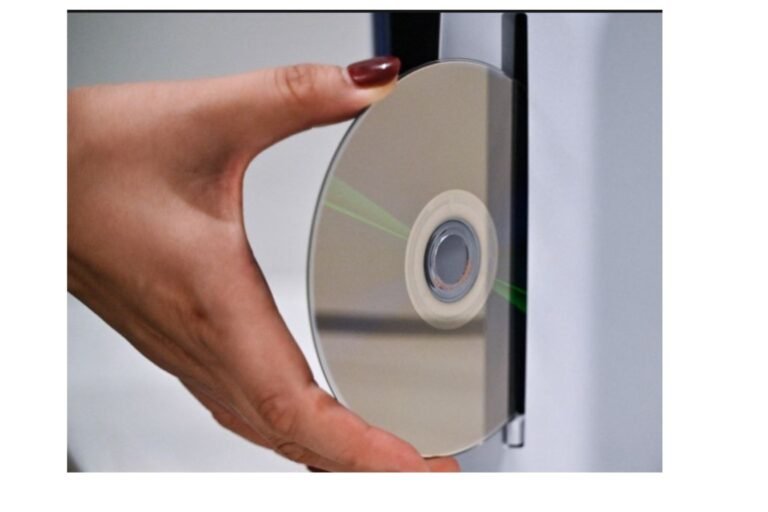
Inserting a drive from an unknown source is a big leap of faith. Never plug in a random thumb drive you picked up; some devices are designed to act as a keyboard and type commands. Disable AutoRun/autoplay if your operating system has that capability, scan any unknown drives before opening anything, and ignore any files you don’t recognize. A clean scan is not confirmation that a file is safe.
Step 10: Use a standard account for everyday tasks
If malware runs as admin, it can do much more. Browse and email with a normal account, and only switch to admin to install or configure things. It’s a small pain, but it limits the damage if something slips through.
Step 11: Back up your files, and keep one copy disconnected
Restore after a ransomware attack doesn’t exist, but backups at least make them bearable. Ransomware can lock up an attached backup drive too, so keep at least one copy offline or in storage that maintains previous versions. Test restoring occasionally. A backup you’ve never restored is a guess.
Step 12: Use strong passwords and multifactor authentication
Today, many attacks target your accounts, not your data. A password manager assigns each account a different password; multifactor authentication means a stolen password alone isn’t enough. It also contains the damage if an info-stealer does get to your machine.
How malicious code sneaks onto a device
Most infections don’t look like attacks. Instead, they resemble minor, sensible choices.
Suppose you want to convert a video. A search ad leads you to a webpage with a free converter. The “download” button is huge but, below it, a smaller link is the actual download source. Clicking the big one downloads an installer. During installation, it asks for admin rights and attempts to install a browser extension. After that, a pop-up dialog proclaims, “Your PC is infected,” with a button labeled “fix it.”
There was an opportunity to quit at every stage;
- Above the ad: she may have gone directly to the vendor’s site, or maybe she already had a built-in tool.
- At the download: a quick domain and publisher check would have revealed something was amiss.
- At the permission prompt: a video converter does not need other sites or pages, or unrestricted access to browsing data.
- At the fake alert: real security software will never force you to download a “cleaner” from a web page. Exit the tab and scan your computer with your own antivirus.
And some others that follow this same pattern:
- Fake updates: pop-ups prompting you to update your browser/media player. You update through your system settings (Control Panel), not on the page.
- Documents that request you to enable macros or content (usually the point at which the malware can execute).
- Compromised legit sites – a normal website can also host malicious ads or scripts, which is why you should keep your browser and all software up to date.
- Extensions with overly-broad permissions: An extension may launch with benign permissions, but then get taken over or downgraded down the line.
Prevention on different devices
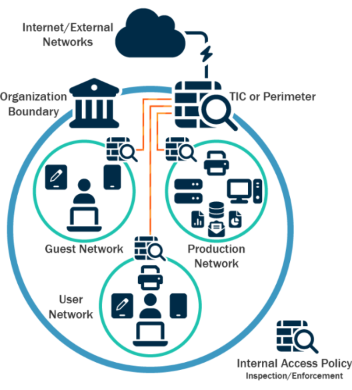
Windows PC or Laptop: Turn on Windows Update, Microsoft Defender, and SmartScreen. If you use your documents folder, then Protected Folder Access can also help. Use a standard account for day-to-day.
Mac: macOS includes Gatekeeper and native malware scanning and prefers notarized applications. These help, but aren’t foolproof. Download only from the App Store or trusted developers, and don’t agree to “install this to view the file”. Macs are susceptible to malware, like any computer.
Android. Keep Google Play Protect enabled, use Google Play to install apps when you can, and be wary of APK files installed directly, which can bypass Google Play’s checks. Check app permissions, and be suspicious of anything that wants accessibility access it shouldn’t have.
iPhone and iPad apps are sandboxed and only available through the App Store, which significantly lowers risk. However, iOS is not completely immune. Phishing links, harmful configuration profiles, and compromised accounts remain concerns. Keep iOS updated and avoid installing profiles you do not recognize.
What to do if you downloaded something suspicious
Identify the attack’s source. A file download does not mean it has executed. If you haven’t opened it, deleting and scanning it will generally suffice. If you’ve executed the file or entered information, don’t delay.
- Were you able to disconnect from the network when you thought the host was live? Turn off Wi-Fi or unplug the cable to prevent further damage and stop data from escaping.
- Stop entering online passwords or sensitive information on that device.
- Run a full scan with your security software and follow its advice for anything it detects.
- Use a different clean machine. Reset all your passwords, starting with your email, banking, and any account that could be used to reset other accounts. Turn on multi-factor authentication on all accounts.
- Restore a backup if files were encrypted or damaged after you verify the device is clean.
- If it was on a work device, report it and consider reporting scams through the appropriate channels in your country.
What if the scan turns up nothing but the device still acts strangely? Seek a deeper scan or a soft or hard reset.
Common mistakes that leave devices exposed
- Assuming antivirus catches everything. It’s only one layer, and anything new or targeted will get through.
- Delaying updates for months. Known bugs remain unresolved the whole time.
- It’s from someone you trust: an attachment from a hijacked account.
- Having only one backup, permanently plugged in. Ransomware can infect it just like anything else.
- Using multiple security tools together. Running two real-time antivirus utilities is not only resource-intensive but may also cause conflicts. Run one and test CPU usage before deciding whether to install add-ons.
Frequently asked questions
How do I safeguard against viruses and malicious code?
Use automatic updates, real-time security protection, downloads only from trusted sources, a standard user account, and verified backups. Each measure addresses vulnerabilities that others may miss.
Can a virus enter my device without downloading a file?
Yes. Infection can occur when you visit a compromised website, open a malicious attachment, or an unpatched vulnerability is exploited. That is why it’s not enough to be aware of what you download; you also need to stay up to date and protected while surfing.
Is antivirus software sufficient to prevent malware?
No. Security advice from organizations such as CISA and NIST treats antivirus as one layer, alongside patching, user awareness, filtering, and backups.
Can email infect your computer when you open it?
It’s unlikely from the plain text alone, but not impossible, since email programs have sometimes been exploited. Make sure you use the latest version of your email app, and be especially careful with attachments, links, and anything urging you to run a file.
How Frequently Should I Run a Scan on My Device?
It depends. You don’t need to scan all the time with real-time protection enabled. Instead, do a full scan if your device isn’t acting normally, after removing a possible threat, or if you temporarily turned off your protection. Scan any alien file or disc ASAP.
Can I factory reset to remove malware?
Yes, often – because it erases the system. But it’s not foolproof against every threat, so you will lose anything you haven’t saved. Only restore files you’re sure of, and then change your passwords.
The bottom line
To reduce the risk of viruses and malicious code, use automatic updates, real-time protection, cautious downloading, and a standard user account. Also, maintain backups and enable multifactor authentication in case a threat bypasses other defenses. Many infections start with a preventable click, so pausing for five seconds before downloading is especially valuable. For more information, refer to CISA’s advice on defending against malicious code and NIST’s guide to malware incident prevention and response.

I’m a technology writer passionate about AI and digital marketing. I create engaging and useful content that bridges the gap between complex technology concepts and digital technologies. My writing makes the process easy and engaging. I encourage participation I continue to research innovation and technology. Let’s connect and talk technology!