The short version: Buy a card labeled microSD Express and ignore speed labels like UHS-I or V90. Pick a capacity that fits how you buy games. Remember that save data stays on the console. If you outgrow the card, one larger card plus a computer copy is the official route.
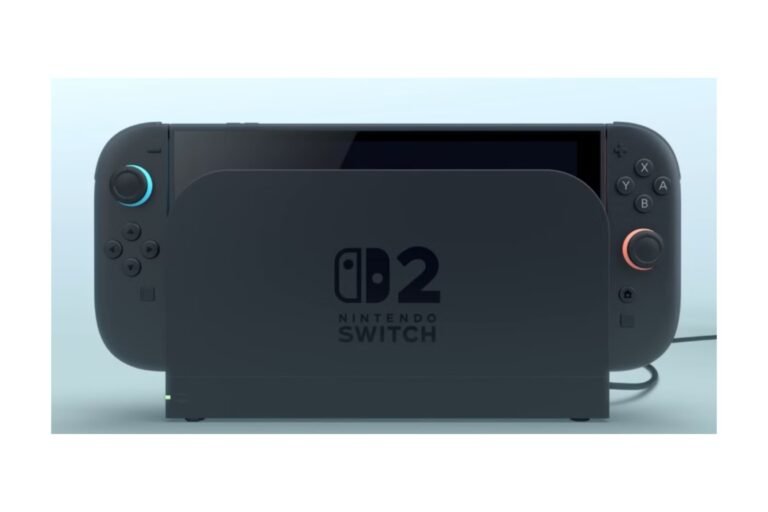
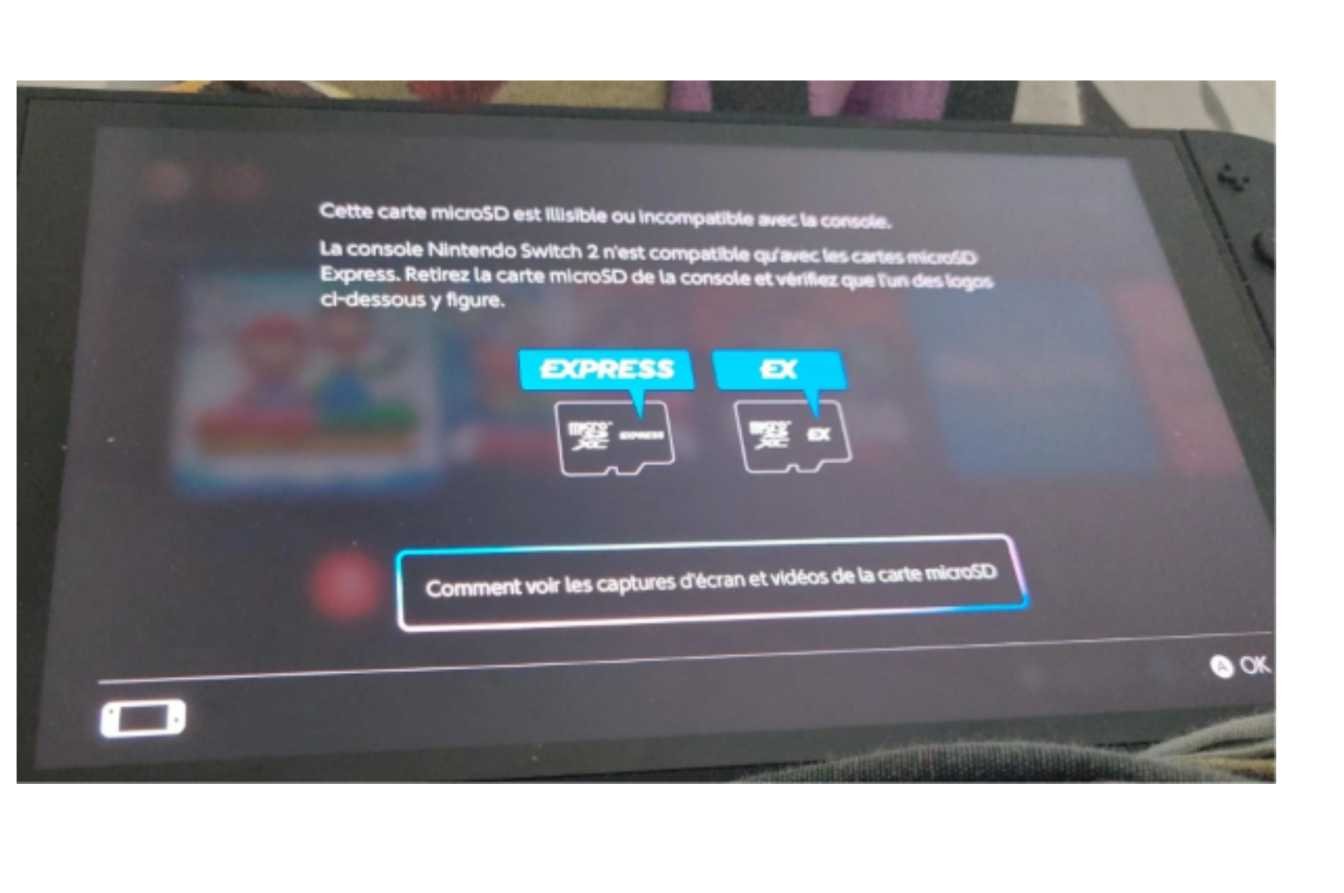
Nintendo Switch 2 will require microSD Express cards for additional storage. Your microSD card from your original Switch will fit in your Switch 2, but it won’t store Switch 2 games. Nintendo supports compliant cards up to 2TB.
That one rule causes most buying mistakes. This article explains Nintendo Switch 2 SD cards, including the built-in storage limit, what goes on a card and what doesn’t, and capacity recommendations. Upgrades and troubleshooting. As part of our Nintendo Switch 2: Complete Guide.
Table of Contents
The requirements at a glance
| Item | Nintendo Switch 2 |
|---|---|
| Internal storage | 256GB (part is reserved for the system) |
| Card type | microSD Express only (Nintendo compatibility page) |
| Maximum card capacity | 2TB |
| Older microSD, microSDHC, microSDXC | Not compatible for Switch 2 games |
| Can go on the card | Downloaded games, updates, DLC, screenshots, videos |
| Stays in system memory | Save data |
| First-time setup | Internet system update required |
| Cards per console | One (Nintendo’s recommendation) |
Info based on Nintendo’s support pages (from October 2026). Check before you buy; guidance and card availability change.
How much internal storage do you really have?
Storage: The Switch 2 includes 256GB of memory, but the system reserves some of it. Nintendo doesn’t publish a single, usable number in this category (so don’t cite one). To get your own, head to System Settings and Data Management, which lists what’s used and what’s available. Menu names can change depending on your system version.
Game sizes can vary widely, so don’t plan for an average size; check each game’s size on its store page.
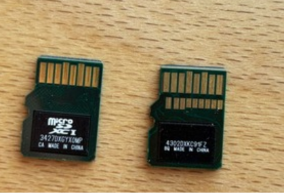
What goes on the card and what stays internal
A card is where software can sit. It is not a substitute for internal storage.
- On the Card: Games you’ve Downloaded, Updates, DLC, Screenshots, and Video captures. See Nintendo’s microSD Express FAQ.
- Stays in system memory: save data. Data stored here cannot be saved or copied to a card. There may be additional update data stored in system memory, so check Nintendo’s Data Management FAQ for information.
No matter how big the card is, the internal storage will fill up over time. Archiving a game frees up space by deleting the app data while keeping the game icon for future re-download.
How to spot a compatible card before you buy
Look for cards that show UHS-I, UHS-III, V90, or A2. These are older speed classifications. They indicate how fast the card is, not whether it’s compatible with Express.
- Look for “microSD Express” or “SD Express” in the name. Don’t buy it if it does not have this.
- Is it large enough? Up to 2TB is fine for Nintendo.
- Select the brand and guarantee. Choose a trusted brand with a clear warranty.
- Verify the model number. Use the model number to identify the product on the manufacturer’s website, instead of relying on the list title.
A fast standard card is not compatible.
Counterfeit and mis-advertised cards
Since any Express card is usually more expensive per GB than a normal microSD card, treat any suspiciously cheap, high-capacity card as suspicious. Many fake or relabeled cards claim more than they actually have.
- Buy directly from the manufacturer, a large store, or a seller you can verify.
- Make sure it isn’t the traditional card branded with a similar prefix.
- Once you buy it, tap the card, then make sure the console reports the capacity you paid for.
If it looks wrong, send it back before you load it with games.
Do you need the fastest card?
We recommend Express cards for faster read/write speeds and a smoother gaming experience, so we don’t recommend standard cards. Still, independent tests show that compatible cards often don’t differ much in practice. Wirecutter’s microSD roundup and Deku Deals’ Switch 2 card guide both compare tested cards, but each reading varies by card, so it’s worth reading them and not assuming every card is identical.
Check genuine specs like compatibility, capacity, warranty, and price on the day you buy. New cards from Samsung, SanDisk, PNY, Lexar, and ONN have arrived, but stocks and prices fluctuate rapidly.
Choosing a capacity
These are recommendations, not Nintendo requirements.
| Your situation | Reasonable starting point |
|---|---|
| Mostly physical game cards, a few downloads | 256GB, or even rely on internal storage for now |
| A mix of digital and physical, modest budget | 256GB |
| Buy most games digitally | 512GB |
| Large digital library, and a price you’re comfortable with | 1TB or more |
The tradeoff: Express cards are pricier (per gigabyte), so you’re deciding between a smaller card right away and a bigger one eventually. Upgrading down the line is an option (with a computer and card reader below), but it’s more hassle, so size up if you know you’re going all-digital from the outset. See our Nintendo Switch 2 specs for the tech spec list and Switch 2 accessories for additional buys.
Installing your first card
Insert the card into the slot behind the fold-out kickstand on the back.
Step 1: Turn on the console and complete the system update, since you’ll need to go through an internet update for the first time.
Step 2: Open the kickstand.
Step 3: Insert the card straight in, as Nintendo’s page on inserting the card instructs.
Step 4: If it was turned on when inserted, power the console back on.
Step 5: Verify the Drive capacity in System Settings.
Moving games between internal storage and the card
There’s no need to delete your games to make space. Use Nintendo’s officially recommended move procedures:
Step 1: Open the System Settings.
Step 2: Select Data Management.
Step 3: Select Move Data Between Console/microSD Express Card.
Step 4: Choose what to move.
One solution is to keep your most-played and most-used games on the system’s internal storage, and store less-played downloads and media on the card. That’s not an official Nintendo rule, though!
Your old Switch card
Your microSD card from the original Switch isn’t compatible with the Switch 2, so you can’t use it for digital Switch 2 games or save data. Nintendo says you can save captured screenshots and videos on older cards, and its start-using page has the steps. It still works in your original Switch.
Upgrading to a larger card
A console won’t merge software data from multiple microSD cards. Nintendo recommends one card per console, and the supported upgrade method is a computer.
Step 1: Get a larger microSD Express card in the right format, plus a card reader to connect to your computer.
Step 2: Copy the entire Nintendo folder from the old card to the new one. Don’t edit or delete anything inside.
Step 3: Plug the new card into the Switch 2.
Step 4: Re-download anything missing (via the eShop).
For the full method, read Nintendo’s transfer guides. And that is why one large card is better than a bunch of smaller ones.
When something isn’t working
- Card not recognized: Make sure it’s a microSD Express card, not a standard fast card.
- Insert it with the console powered on, then restart.
- Seating Issue: Try popping it in and taking it out straight until it clicks.
- Storage warning: Transfer or archive your lesser-played titles in Data Management. Saved data lives in system memory, so that a card won’t clear every warning.
If none of that helps, check Nintendo Support, since the directions may have changed since this post.
FAQs
Can you use regular microSD cards on the Switch 2?
No. Only microSD Express cards are compatible with Switch 2 for game storage.
Can I use my previous Switch card?
Does not work for Switch 2 games or save data. Used for viewing any captured screenshots/videos.
How much storage can I add?
Support for microSD Express cards (up to 2TB).
Will game saves transfer to the card?
No. Saved data remains in system memory.
Is it worth buying the fastest card?
Not necessarily. Differences between compatible cards may be minimal, so consider capacity, warranty, and cost.
Can you use two cards at the same time?
Nintendo recommends using one per console, and the console won’t merge data from more than one card.
How do I upgrade to a larger card?
Copy the entire Nintendo folder to the new card on your computer, then insert it.

I’m a content writer passionate about gaming and strategy. I create engaging and informative content based on the latest gaming trends and industry updates. I enjoy exploring new tools, analyzing games, and making complex topics easy to understand for readers.