Google Ads tracking template: A tracking template is a field in your account settings that instructs Google how to generate the URL your user arrives at after they click your ad. It lives apart from your Final URL, allowing you to insert UTMs, ValueTrack placeholders, or even a 3rd-party redirect without changing the page they land on. Every tracking template must include a {lpurl}, a placeholder that links to your landing page. If you haven’t looked into this before, the CliffsNotes is: you probably don’t want any clever tricks, but knowing what is under the hood will prevent a lot of broken links & orphaned rows in your reporting.
Table of Contents
What Is a Google Ads Tracking Template?
Simply put, a tracking template is a URL. It’s a structure for your URL. When a user clicks on your ad, Google will take the template you’ve typed, replace any ValueTrack tokens with live ones (the campaign number, the device type, the trigger keyword, etc.), and send your user to the address that results:
Three fields work together here, and mixing them up is where most people run into trouble:
- The Final URL is the page you want the visitor to reach.
- The way in which the click is composed and tracked before the visitor arrives is managed by the tracking template.
- The Final URL suffix is an additional, more straightforward field for appending static parameters to the landing page URL.
A basic tracking template looks like this before Google fills it in:
{lpurl}?utm_source=google&utm_medium=cpc&utm_campaign={campaignid}And after a click, it might resolve to something like:
https://example.com/shoes?utm_source=google&utm_medium=cpc&utm_campaign=12345678
Nothing here alters your Final URL. That’s the whole idea; the tracking template envelops it.
Tracking Template vs. Final URL vs. Final URL Suffix
It’s this tension that drags many advertisers into it; it’s worth spelling this out as clearly as possible:
| Final URL | Sets the actual landing page | No | https://example.com/shoes |
| Tracking template | Builds the full click URL with dynamic tracking logic | Yes | {lpurl}?src={_source} |
| Final URL suffix | Appends static parameters to whatever Final URL is set | No | utm_source=google&utm_medium=cpc |
| Custom parameters | Defines your own placeholder values for reuse in templates | N/A | {_campaign} |
Google’s own help page recommends that advertisers use a complex Final URL suffix for purely landing-page parameters (e.g., simple UTM values) and use the tracking template for more complex tracking logic, such as a third-party ad server, before reaching the Final URL. The suffix field is also handy in that it doesn’t reconstruct the entire URL, so if there is a typo in the suffix, you’re less likely to break the URL. However, a typo in your tracking template might prevent your ad from serving.
If you don’t have a complex setup, which most advertisers don’t (want UTM parameters on every click, for example), it’s almost always best to use the Final URL suffix. The tracking template is best for when you need {lpurl}-based logic, such as if you want to funnel your clicks through a tracking or attribution provider first.
How Google Ads Tracking Templates Work
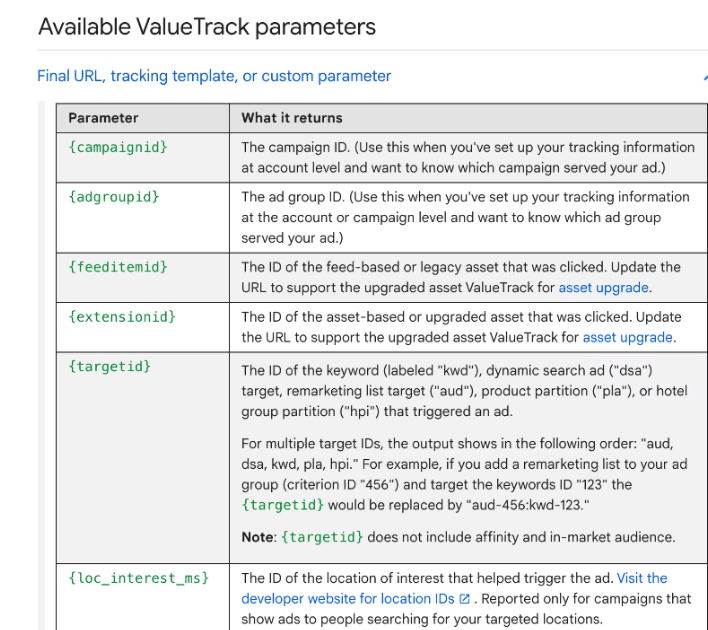
What actually happens is this: a user clicks your ad. Google Ads takes the tracking template associated with the click, expands the ValueTrack parameters into the actual data for that impression, and appends the result to your landing page URL. The user is then taken to that combined URL, which your browser then loads.
Today’s tracking works in parallel: the page begins loading immediately while the tracking request runs in the background.2018. This is a departure from traditional redirect chains, in which a slow third-party redirect would have introduced a perceptible pause. The choice of third-party services, however, remains important: incompatible trackers can cause the parallel redirect to behave as a traditional redirect.
A simple template with a couple of parameters:
{lpurl}?campaign={campaignid}&device={device}At this point, once resolved, {campaignid} is the numeric ID of the campaign, and {device} is something like ‘m’ for mobile or ‘c’ for desktop.
Google Ads Tracking Template Examples
Basic template
{lpurl}Here is the bare-minimum valid template that takes the click to your landing page with no additional tracking. You’d want to utilize this when you’re not applying any parameters at the template level (maybe you’re doing everything in the Final URL suffix)
Template with UTM parameters
{lpurl}?utm_source=google&utm_medium=cpc&utm_campaign={campaignid}This is workable, but for parameters only for use on the landing page, the Final URL suffix field is usually the best place to put them; it’s more straightforward and is less likely to break the click URL if you make a typo.
Campaign and ad group tracking
utm_campaign={campaignid}&utm_content={adgroupid}Helpful if you want your Analytics platform to display the particular campaign and ad group that resulted in a session, rather than grouping all sessions under “Google / cpc”.
Keyword tracking
utm_term={keyword}Handy for Search campaigns, where {keyword} gets the keyword that caused your ad. It is good to be aware that this parameter is not defined the same-or at all for every campaign type, and this is something that the section following explains.
Device tracking
device={device}Information on whether the click was on mobile, desktop, or tablet.
Network tracking
network={network}Indicates if the click came from Google Search, Search Partners, or the Display Network.
Template with a third-party tracker
Some send clicks through a third-party click tracker before the landing page (for instance, to an attribution platform or an ad verification service). The general form is:
https://tracker.example.com/click?redirect={lpurl}&campaign={campaignid}The exact parameters and format will vary depending on the tool you are using, so check what it requires rather than guessing.
Google Ads ValueTrack Parameters for Tracking Templates
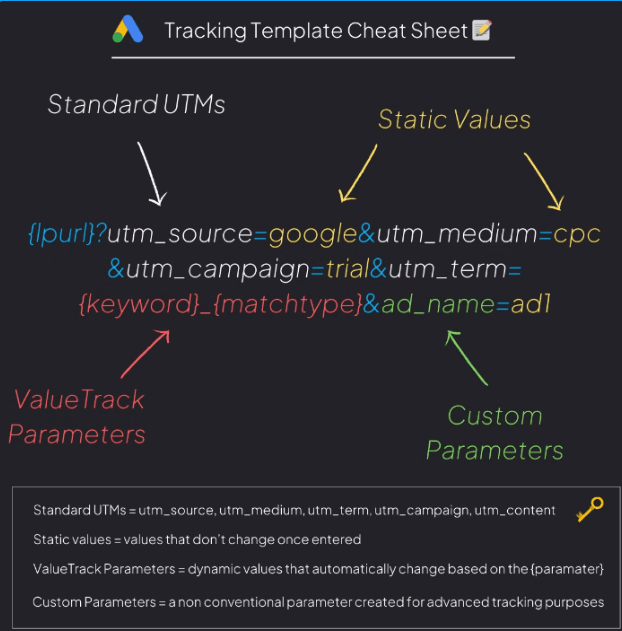
ValueTrack parameters are variables inserted at the time of the click. These are the ones you’ll use most often.
| {lpurl} | Your landing page URL | Required in every tracking template |
| {campaignid} | Numeric campaign ID | Campaign-level reporting |
| {adgroupid} | Numeric ad group ID | Ad group-level reporting |
| {keyword} | The keyword that triggered the ad | Search campaign analysis |
| {matchtype} | Broad, phrase, or exact match | Keyword performance review |
| {device} | Mobile, desktop, or tablet | Device-level reporting |
| {network} | Search, Search Partners, or Display | Network performance split |
| {creative} | The ad/creative ID | Creative-level testing |
| {placement} | Where the ad appeared (Display/Video) | Placement performance |
| {gclid} | Google’s click ID | Attribution and offline conversion imports |
Not every parameter belongs to every campaign type. This is one of the most common points of confusion. Search campaigns are well-suited to keyword parameters such as {keyword} and {matchtype}, while Shopping Campaigns rely on {product_id} and {device}. Performance Max and Display campaigns, on the other hand, usually don’t give any input for {keyword}, which is neither an error nor a blank! As with any tool, it pays to do a little research before copying a template from one campaign type to another. Google’s support for parameter types has evolved.
How to Set Up a Google Ads Tracking Template
- Log in to Google Ads. Then navigate to the campaign, ad group, or account level where you wish to enable tracking.
- Open the settings for that level and find the URL options- this is usually called “Tracking template” (or in a campaign or ad settings menu elsewhere) and isn’t always where you’d think it is. If you can’t find it, search Google Ads Help for the path.
- Insert your tracking template here. If you do not want the {lpurl}, this was the intended starting point.
- Create a Final URL suffix on its own if you are only adding simple parameters such as UTM data rather than collapsing everything into the tracking template.
- Do not forget to save.
- Try out the template with the built-in Test option until you are happy with the setup, as it shows the resolved URL, allowing you to verify whether it’s being directed to the right place.
You can also invalidate a tracking template, which would prevent an ad from serving. This is the most important reason to test before saving in the settings.
How to Create a Google Ads UTM Tracking Setup
UTM parameters (utm_source, utm_medium, utm_campaign, utm_term, and utm_content) are the most common way for analytics platforms (from GA4 to external CRMs) to identify which site/area drove the traffic. The default initial configurations would be:
utm_source=google&utm_medium=cpc&utm_campaign={campaignid}&utm_content={adgroupid}&utm_term={keyword}One thing I want to clear up: auto-tagging (whipping a GCLID onto your URLs) and UTM tagging (adding tags via the URL) are not interchangeable, and one doesn’t replace the other. GCLID is what makes Google’s attribution and Smart Bidding work for them; it’s what Google Ads and Analytics read natively. UTMs are what most third-party tools outside of Google’s own actually read. If there is any non-Google tool in your reporting stack, you’ll typically want to have both auto-tagging on, and UTMs appended using a Final URL suffix or a tracking template.
Where Should You Add the Tracking Template?
Tracking templates can be set at the account, campaign, ad group, ad, or keyword level. Google assigns the most specific template if there is overlap. For example, if a tracking template is set at the individual ad group level, the account-level tracking template will not apply for ads within the group.
For most advertisers, it’s much easier to create one consistent template at the account or campaign level than to stack multiple templates at multiple levels. Keep the ad group or ad level free for only those instances where you truly require a different tracking logic for that sub-section (e.g., a different 3rd-party tracker for one campaign type).
How to Test a Google Ads Tracking Template
Before trusting a new template with live traffic, run through this checklist:
- Use the Test button in the URL options field to generate the complete URL.
- Ensure the URL begins with the appropriate scheme and doesn’t contain a broken or repeated character. character.
- Ensure that the numerical values for any other data feeds, such as ValueTrack parameters, reflect actual reads rather than appearing empty.
- Hover over and click a live ad (or preview if available) and check that the landing page loads (no errors).
- First, make sure your analytics tool (GA4’s DebugView is a good example) is showing the UTM parameters and that clicks are making it.
- Verify that your CRM or lead form is capturing the parameters (if used).
- Test on mobile and on desktop, because sometimes redirections that are supposed to be mobile-only change to desktop.
Common Google Ads Tracking Template Errors
Missing {lpurl}. Omitting this, or including a predetermined URL, can direct all your traffic to the same page or deactivate the ad altogether.
Incorrect ? or &. An extra? which can frequently be found in a landing page URL that already has other parameters, will result in a malformed link. Use & to concatenate added parameters.
Adding landing-page parameters in the wrong field. Website-specific parameters are often more appropriate for the Final URL suffix than the tracking template.
Malformed URL encoding. If your URL contains spaces or special characters, they need to be properly encoded, or the link might break.
One template supersedes another. As the more specific templates take precedence, an ad group template set at the ad group level might override what you have set at the account level, and you might not even notice.
A ValueTrack parameter not displaying any information when used. Generally a dead giveaway that the parameter isn’t relevant to the campaign type, for instance {keyword} on a Performance Max campaign.
UTM codes not showing in analytics. Can result from omitting {lpurl}, a redirect that cleans the query string, or an analytics configuration that’s filtering them out.
A redirect that causes tracking issues. HTTP-to-HTTPS redirects, or other server-side redirects, can cause parameters to be dropped before they even reach your landing page or analytics system.
A template that doesn‘twork for a different campaign. Often indicates that a template has been copied from a campaign type that supported certain parameters and pasted into one that doesn’t.
Best Practices for Google Ads Tracking Templates
- Keep the templates as simple as the situation demands, for instance, by omitting unused parameters.
- Use consistent, readable UTM names across all campaigns to enable accurate comparisons in reports.
- Do not replicate the same parameter in the tracking template and the Final URL suffix!
- In general, don’t create different templates in each level unless you have a genuine need to.
- Never turn auto-tagging off so GCLID attribution and Smart Bidding still work; then add UTMs on top for alternative tools.
- Always test before implementing a change.
- Keep a record of your structure somewhere your team can refer to.
- Second, use ValueTrack parameters instead of hard-coded values that Google can already provide dynamically (such as keyword, match type, ad group, ad group ID, campaign).
- Always recheck your templates when the campaigns are rebuilt or migrated – templates taken over then sometimes don’t get checked.
Google Ads Tracking Template for GA4
The flow, briefly: clicking goes to your tracking template/Final URL suffix, hits your landing page with the UTM values (and GCLID, if auto-tagging is enabled), and GA4 captures those parameters to credit the session.
Auto-tagging: This is what enables GA4 and Google Ads to communicate out of the box, with sessions attributed to Google Ads and CPC without any additional configuration. UTMs are still relevant here; they’re responsible for cross-referencing the same session elsewhere and for providing additional campaign signal if your GCLID-based reporting just isn’t granular enough.
Just manage expectations: implementing a tracking template won’t bridge the gap between the reported numbers in your GA4 to Google Ads mismatch. The two tools handle attribution models and sessions, use completely different data processing, and have nothing to do with a URL parameter. What a clean template does is deliver the right data to GA4.
Frequently Asked Questions
What is a tracking template?
It is a URL Field where you control how Google constructs the click URL the user is directed to, thus enabling you to add a ton of tracking parameters into your Final URL. You are required to add {lpurl} in this.
What to enter in Google Ads tracking template?
Minimum: {lpurl}.55Then (only if you have a compelling reason), add ValueTrack params, or third-party tracker syntax.41Simple utm tagging should normally be in the Final URL suffix.
What is the {lpurl} parameter?
It is your Final URL. Your tracking template cannot be without it; otherwise, the click won’t go through to your landing page.
How does a tracking template differ from the Final URL suffix?
The tracking template generates the complete click URL and will need {lpurl}. The Final URL suffix adds static parameters to the existing Final URL, so {lpurl} isn’t needed.
Is a Google Ads tracking template required?
Not always. If your standard UTM tags suffice, the Final URL suffix usually is all you need. It’s more relevant if you’re sending clicks through a third-party tracking solution or require dynamic ValueTrack functionality.
Can I include UTM parameters in Google Ads?
Yes, in the tracking template or the Final URL suffix. UTMs and Google auto-tagging (GCLID) work independently of each other, even though they are used together.
What’s the location for adding a Google Ads tracking template?
Various levels include: account level, campaign level, ad group level, ad level, and keyword level. It depends on how granular you want to be. The most granular level is when more than one is set.
I can’t get Google Ads tracking template testing to work; what should I do?
Verify your resolved URL using the platform’s built-in Test option, then confirm you land on the expected page and that your analytics tool captures the anticipated parameters.
Why is My Tracking parameter in Google Ads isn‘t working?
Typical reasons include a missing {lpurl}, a duplicate in the URL, a redirect that removes the query string, or a ValueTrack parameter that is not valid for that campaign type.
Where do I include the tracking parameters? (E.g., query strings) Does Google Ads automatically append the parameters?
When auto-tagging is enabled, Google Ads automatically inserts a GCLID. UTM parameters do not insert automatically; you need to implement them yourself in the tracking template or Final URL suffix.
Final Takeaway
Essentially, a tracking template is just Google’s way of telling you how to build out your click URL. There is nothing fancy or mystical about it. If you are a rookie, just put {lpurl} in your template, add some UTMs to the Final URL suffix, and enable auto-tagging. When you are directing clicks to a third-party tracker, this is where to add your tracking URL template. And if you are the logical sort, then bear in mind that support for ValueTrack parameter syntax varies by campaign type, so be sure to copy a URL template only if it actually supports the parameters. Whatever you do, always test your template first. A bad template will cause your ad not to serve, a more costly error than a few moments testing your URL.
Read:
how to set your default Google account
Gmail search operator newer_than

I’m a technology writer passionate about AI and digital marketing. I create engaging and useful content that bridges the gap between complex technology concepts and digital technologies. My writing makes the process easy and engaging. I encourage participation I continue to research innovation and technology. Let’s connect and talk technology!