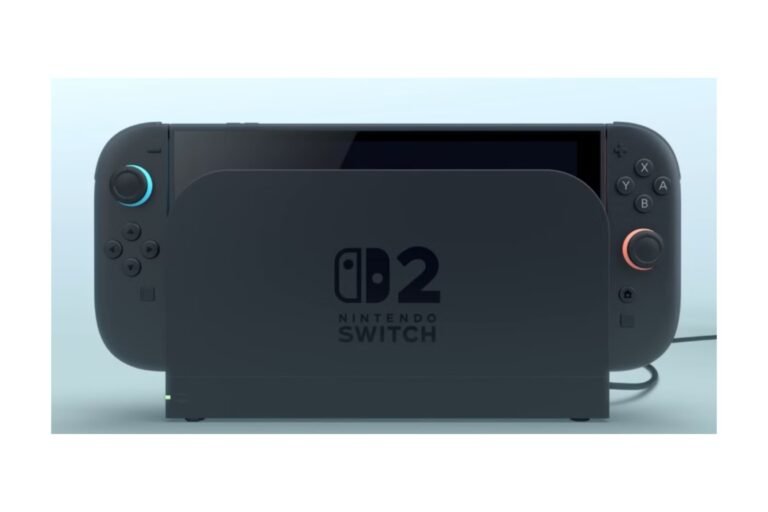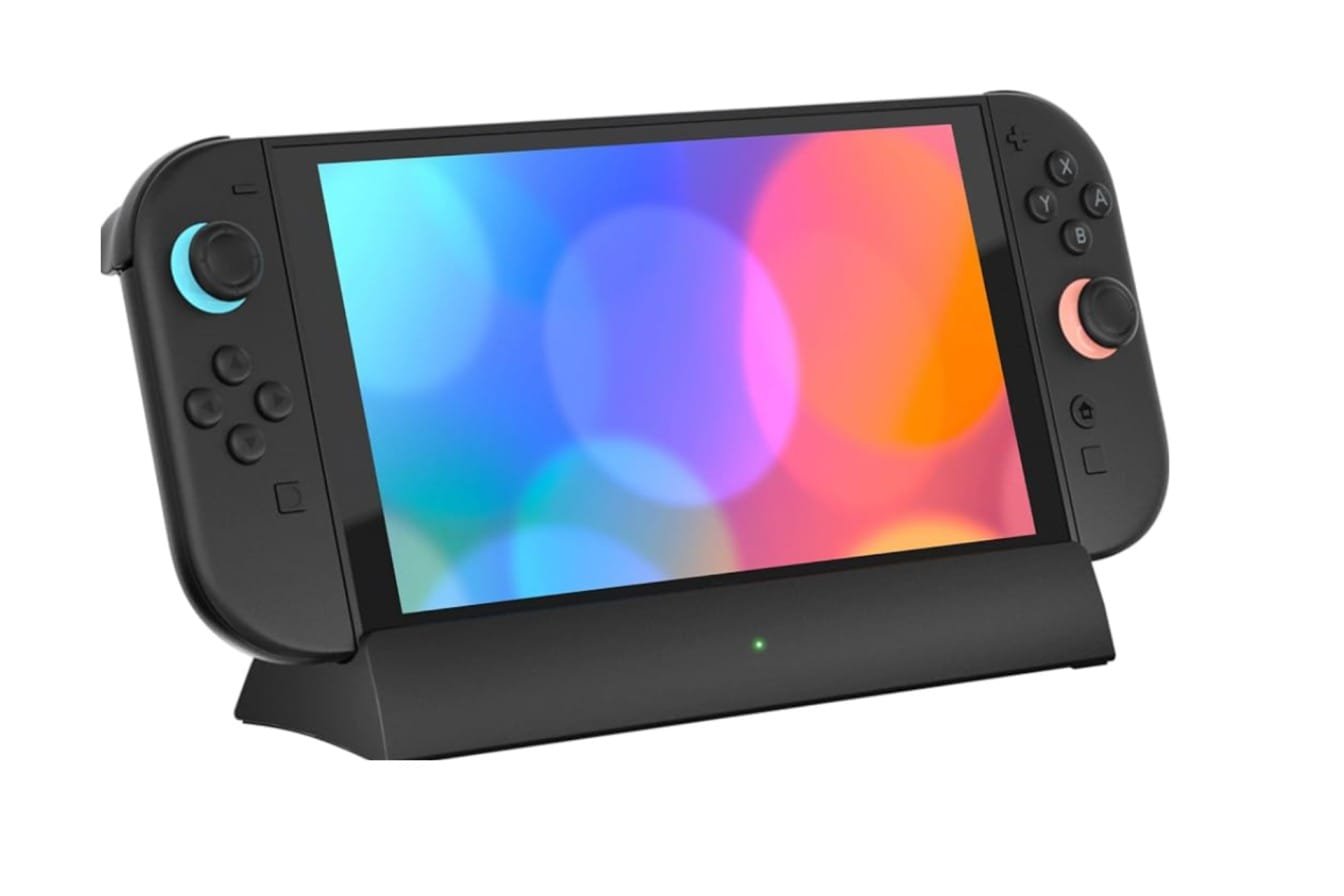
The Switch 2 dock is what makes the console a TV box. It transmits the video through the HDMI port, recharges the system, supplies a web cable port, and has a fan, which the original Switch dock never had. You need the Switch 2 version, since the old dock won’t work with the new console.
This guide explains what’s in the box, what each port does, what the 4K claims actually mean, and how to fix a blank screen. It also explains if a spare dock is worth picking up. For the big picture, check our [Nintendo Switch 2: Complete Guide].
Table of Contents
Nintendo Switch 2 Dock at a Glance
- Comes with all new Switch 2 systems
- TSM provides 4K@60 fps or 1080p/1440p@120 fps Video Output.
- 3. HDR10 on supported TV and games
- Ports: HDMI, LAN, 2 x USB 2.0 (compatible), AC adapter port
- Docked Charging
- Previous Switch dock: incompatible
- Placeholder: Dock set for Nintendo (US listing: $124.99 at the time of writing)
What Is the Nintendo Switch 2 Dock?
Docked mode: Plug the console into the dock, and video goes to the TV over HDMI, with power to the console. Take it out, and suddenly you’re in handheld mode. Your saves and settings don’t change.
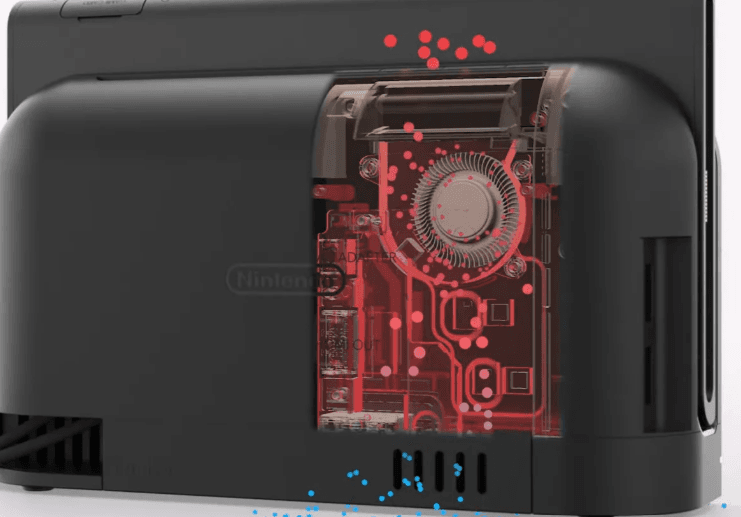
The dock is not a performance upgrade for the console inside. Nintendo says the internal fan helps keep docked performance more stable and doesn’t guarantee all games will run faster on a TV. The real benefits of docking are increased video output capabilities.
What’s Included With the Nintendo Switch 2 Dock?
Every new Switch 2 ships with one dock. Nintendo’s accessory listing and retail contents list:
- The Switch 2 dock
- The Switch 2 AC adapter
- An Ultra High Speed HDMI cable
- A USB-C charge cable
No Ethernet wire, no stand, no additional power cable. If you plan to use a wired internet connection, you’ll need to bring your own.
Nintendo Switch 2 Dock Ports, Explained
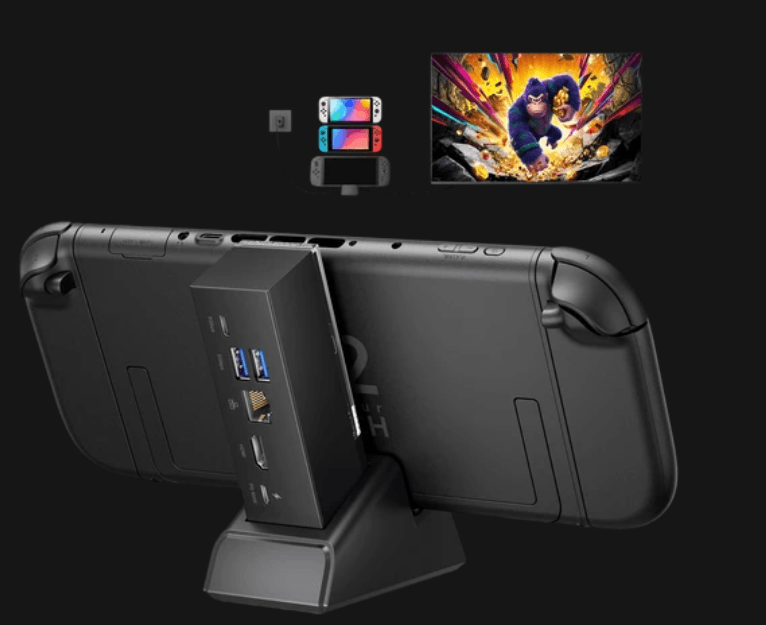
Nintendo lists five connections in its specifications. Here’s what each is for.
| HDMI | Sends video and audio to the TV or monitor | Use the included Ultra High Speed cable |
| AC adapter port | Powers the dock and charges the console | Needs the Switch 2 adapter, not the old one |
| LAN port | Wired Ethernet | Only works in TV mode, through the dock |
| 2 × USB (2.0 compatible) | Accessories such as wired controllers or adapters | Located on the side |
| System connector | Where the console seats | Not something you plug a cable into |
Those are the USB ports. The connectors are USB 2.0 compatible, meaning they are fine for accessories, not fast external storage. Don’t think of hooking up a speedy SSD on the side to see high transfer speeds.
The LAN port is more practical than it sounds. The console supports Wi-Fi 6, but a cable is more reliable if your router is far from the TV or your wireless is congested. Its usefulness depends on your home network, not the dock.
Nintendo Switch 2 Dock Features
Beyond the ports, a few features determine how the dock behaves.
- TV output up to 4K. See details in the 4K section below.
- HDR10. Your game, TV, and settings must all be compatible.
- Wired networks. (via the above LAN port).
- Charging at dock. The adapter charges the console during gameplay.
- Has a fan. Nintendo says this can help to stabilize performance. It isn’t an alternative to the console’s fan cooling, and it won’t necessarily run continuously.
The fan is the only active-cooling hardware the dock includes. It allows the dock to dissipate heat, especially in enclosed TV cabinets, and keeps vents dust-free. Speculation about overheating online must be monitored, but it can’t be verified for every unit.
One feature the dock fails to enable: VRR. Nintendo stated that Switch 2’s VRR will work solely in handheld mode, so don’t buy a set expecting it to work when docked.
How to Set Up the Nintendo Switch 2 Dock
Step 1: Set the dock in a location with adequate airflow.
Step 2: Connect the official Switch 2 AC charger to the dock and the wall.
Step 3: Connect the dock to the included Ultra High Speed HDMI cable, then connect the other end to your display.
Step 4: (Optional) Hook an Ethernet cable up to the dock’s LAN port.
Step 5: Pick up the console and slide it into the base. The Joy-Con 2 controllers will remain attached or detached when you insert the console into the base.
Step 6: If your TV does not automatically switch to the correct HDMI input, press the mode button on your remote to change it.
If you encounter issues routing gaming video through an AV receiver, soundbar, or HDMI switch, try connecting the dock directly to the TV. For more extensive TV arrangements, consult our [Nintendo Switch 2 Connect to TV] instruction.
Nintendo Switch 2 Dock and 4K TV Output
In TV mode, the system can output 3840 × 2160 (4K) at 60 fps. At 1080p or 1440p, specific games can get 120 fps. You can’t get 4K at 120 fps because Nintendo limits 4K to 60 fps.
In reality, how much 120 fps you get depends on the game. Several third-party reports say 120 Hz in docked mode is limited to 1080p, so research your game and display before expecting the feature. See our [Nintendo Switch 2 Specs] article for the complete set.
The larger source of confusion is that ‘supports 4K output’ doesn’t mean a game renders at native 4K. Preserve the distinction among the following four things:
- Maximum Hardware Output. How much can the dock & console send to various hardware?
- The game rendering resolution: the resolution at which the game actually renders.
- How good your TV can be: ‘Display resolution’: the quality of the signal your TV receives. ‘Display resolution’, however, can also be the maximum resolution it can process.
- Target frame-rate: did the developer decide to have sharper images or more fluid motion
A game might be displayed below 4K, then upscaled to a 4K signal and still rightly called a 4K-output game. If you find something softer than expected, that is the game’s option, not a dock blip.
When playing on a 4K TV, set the game output to (at minimum) 4K, turn on HDR if your TV and the game both support it, and turn on game mode (ALLM) on your TV for minimum latency. On a 1080p or 1440p monitor, set the game to 120 Hz if both the display and game support it. Do not assume every monitor supports HDR, 4K, and 120 Hz.
Can You Use the Original Switch Dock With Switch 2?
No. Nintendo says you can’t use the original dock because the Switch 2 console cannot be inserted into it. The physical ports won’t match up.
That also rules out two other items from your old setup for TV mode:
- The current AC adapter doesn’t output the power the Switch 2 dock requires, as Nintendo describes.
- The old HDMI cable isn’t Ultra High Speed, and Nintendo said it isn’t compatible with Switch 2 TV mode.
If you’re upgrading, you’ll want to use the Switch 2’s dock, power adapter, and cable. You can keep your existing dock with your original Switch in a different room. We compare the two systems in [Nintendo Switch 2 vs. Original Switch].
Can You Buy a Replacement or Extra Dock?
Yes. Nintendo sells a Nintendo Switch 2 Dock Set with the dock, AC adapter, USB-C charging cable, and Ultra High Speed HDMI cable. Nintendo markets it as a replacement or for setting up a second TV. When I called Nintendo’s US store to prepare this article, they listed it at 124.99; however, prices fluctuate, so confirm before you buy.
It’s a proper kit, a full dock, rather than a bare stand. Useful if you’re considering a second telly, but it’s debatable whether you want to pay quite so much for it.
Before buying anything, check:
- Is the listing claiming it is designed for Switch 2 rather than merely “Switch” or “Switch OLED”?
- Have a power adapter?
- Does it declare the resolution it supports and the HDMI version?
- Easy Return Policy?
Third-party docks: the real risk
Another play is third-party docks, particularly small travel units. And here come the compromises: as before, nothing for good says 100% working. Problems may include no video output, charging with no TV output, random black screens, HDR not working, and low power delivery. Heat dissipation is another unknown.
There is also a timing risk. A third-party dock that works fine now could break later when a system update arrives, because Nintendo console behavior really depends on the firmware. Not all third-party hardware will be affected, but Nintendo doesn’t guarantee compatibility, and warranty support can be unclear. For a main TV, the official dock is the better choice. For a travel dock you use only now, a third-party dongle is reasonable if you can return it easily. Here is our [Nintendo Switch 2 Accessories] roundup.
How Charging Works Through the Dock
Allows for charging when the console is sitting. Plug the console into the Switch 2 AC charger. You can play games and charge at the same time. The provided power source is a charger, so it doesn’t matter whether a TV is on or off, but it will be turned off if you use the wrong charger or no charger is connected.
A charger isn’t necessary for the dock. The console has two USB-C ports. The bottom one connects to the dock and charges the system; the top one connects accessories and also charges the system. So a USB-C cable is also useful for topping up the battery on the go. For numbers, see [Nintendo Switch 2 Battery Life].
If charging is slow or doesn’t start, the first possible reason is that you’re using the wrong or an outdated adapter.
Nintendo Switch 2 Dock Troubleshooting
Begin with the most basic chain: dock, included HDMI cable, TV. Then reintroduce the rest of the equipment one item at a time.
| No TV signal | HDMI cable and TV input |
| Console not charging | Official Switch 2 AC adapter, console fully seated |
| Black screen or flicker | HDMI chain, HDR setting, output resolution |
| Ethernet not working | Cable, then router |
| TV doesn’t switch to game mode | TV’s ALLM or game-mode setting |
No signal on the TV
Step 1: Verify that the Switch 2’s AC adapter is still plugged into the dock and receiving power.
Step 2: Reinstall the console in the dock.
Step 3: Press the appropriate switch to access the HDMI, then press the “Select” key to choose the “HDMI In” option.
Step 4: Make sure to use the Ultra High Speed HDMI cable (which is supplied with the box). Do not use the older cable that came with your previous project.
Step 5. Connect directly to the TV, ignoring the receiver, soundbar, switch, or capture card.
Step 6: Turn everything off, then turn the TV and console back on, and try a different HDMI port or display.
Not charging
Make sure you’re using the Switch 2 AC charger and that it’s plugged securely into the dock. Confirm that the console is fully inserted. If you still have no power, try powering the device directly via USB-C to see whether the dock or the console is the issue.
Black screen or flicker
This is also one of the most common HDMI chain issues. Long cables, extenders, and receivers can cause problems for this handshake. Try lowering the output resolution or turning HDR off for a moment to see if the picture stays stable.
Frequently Asked Questions
Is there a dock with Switch2?
Q. Does every Switch 2 system have one? A. Yes.
Can I use the original Switch dock with Switch 2?
No. You can’t connect the Switch 2 to it.
Is the Switch 2 dock compatible with 4K?
Yes, up to 4K at 60 FPS using a supported game and display.
3.2 VRR: Does the dock support VRR?
No. Nintendo has stated that the Switch 2 supports VRR in handheld mode only.
Can I buy the dock alone?
Yes, you can buy the Nintendo Switch 2 Dock set, which includes the dock, AC adapter, charging cable, and HDMI cable.
Is a third-party dock safe?
Some work, but I’m not sure they are compatible, and that can change after an upgrade. Firstly, check other sellers’ return rate and feedback from other buyers.
Can one dock work with more than a single Switch 2?
Any Switch 2 console can sit in it. Isn’t one system confined to the dock?
The Short Version
The Switch 2 dock is more than just a berth for the console. It manages HDMI up to 4K, wired networking, USB peripherals, and power, and TV play depends on it. The first dock won’t. If you need a second one and use the TV regularly, Nintendo’s Dock Set is the proven solution. If it is for travel or intermittent use, the third-party dock may be acceptable if you are willing to accept some compatibility risk.

I’m a content writer passionate about games and strategy. I’m dedicated to creating engaging, informative content for today’s audience. I keep a close eye on the latest gaming and industry trends to deliver entertaining, informative articles. Whether it’s exploring new tools or analyzing the sport, I bring a new, accessible voice to each episode. Let us connect and enhance your content with knowledge and insight!